Tuesday, 7 October 2014

AMIStore Sneak Peak on my X1000


Today I have for you a Sneak Peak at the upcoming AMIStore app store for AmigaOS4.1 on my X1000, kindly provided to me to try out by A-EON Technology. Let's Dive In!

I was given the Install_AMIStore program, which kicks things off. When released it should be available to download directly from www.amistore.net. Simply run this program once downloaded.
When run, the initial AMIStore application installation screen appears, with the Download & Install option:


When clicked, it prompts for the installation location - I chose SYS:Utilities and this is the default location:


Installation underway:


All done:


You are then prompted to open the AMIStore drawer or Quit:


 Here is the AMIStore drawer.


Straight away I added it to my Amidock (Click to expand):


When I first opened AMIStore, it spends a few minutes getting things ready, downloading files, etc:


Once completed, here is the initial view:


This view scrolls automatically through various applications available on the store:


On the left hand side is the navigation options in the store, which are:-

View by Category:


Show products (customised):


 Show Products (Banner format)


The search user/product function:


There is also Shopping Bag, AMIStore Preferences (when logged in), Show my purchases and downloads (when logged in), My product wish list (when logged in), and AMIStore login/logout to complete the navigation bar on the left. At the moment I am not logged in so a few icons are missing.

Going into the Drivers Category first, we can see this tiled view of available software:


An example I have chosen first is RadeonHD for AmigaOS4.1 - the information screen is broken up into Overview, Features and requirements (shown below):


You can add this product to your wish list by clicking the Star icon in the bottom, the i button shows the version number, the comment icon to add comments, reload the application data from the server completes the icons at the bottom.

You can download a Brochure for the product (click Brochure if available - otherwise it is greyed out). In this case I can do it - you can see it downloading below:


This is the brochure which opens automatically once downloaded:


Trevor has even provided a downloadable pdf version of his blog on the AMIStore - of course at no charge:


If you click on Download it will immediately ask you to login with your AMISphere account (since I hadn't logged in yet).

This AMISphere account is the same account registered X1000 owners use to download registered updates from A-eon's website.

AMIStore will prompt you if you want to remember the AMISphere username/password while the computer has not rebooted, or permanently save it:


Once logged in the download prompt appears:


Downloading now underway - I note my AMIStore profile is now visible in the main screen and the other icons appear in the Navigation bar on the left now:


Once downloaded, AMIStore prompts whether I want to view to PDF from the default download folder, copy the file to another location or Cancel:


I chose to copy it - the Application Manager installer then starts:


Destination path is then asked for - defaults to RAM Disk - I created a folder on Work called AMIStore for it:


Install completed:


Here is the pdf file downloaded in the AMIStore folder:


Here is the PDF opened on the X1000:


Ok, let's take a look at games, starting with the M.A.C.E demo available for free on the store. The screenshots in the description can be viewed in full size on the AmigaOS4.1 screen (click to expand):


In the Graphics section there are certainly some interesting applications available to get:


You can click on the GBP to change it to USD or EUR currency automatically.


Ubuntu Live Linux for X1000 is also here, listed under Operating Systems:


 If we go into AMIStore Preferences from the Navigation bar, we get a few options to customise our profile, as well as changing the location of the Downloads folder - which is great if you have limited space on the System partition and prefer the downloads on a separate Work partition for example:


You can set the folder where you want - the dialog box is interesting as we can see the underneath folder structure for downloaded files from AMIStore:


Of course, being able to change your avatar image in the AMIStore preferences also is great (jpeg format), and I wasted no time doing that!


I also noticed at this point that it shows your online status below the Avatar throughout the AMIStore - you can click on your avatar to edit your profile or hover the mouse over the online words to change your status to busy, away, and invisible too:


This is the banner view again:


If I check my shopping bag there is nothing there at the moment:


Looking through the AMIStore it seems Warp3D for RadeonHD may not be too far away...but not yet. I can click on the Email notification icon on the top right of the information screen to be notified when it is available:


 At any time you can use the Show my purchases and downloads to see your previously purchased items, and click on them to redownload them again.


As I add items into the Shopping Bag you can view them at any time, and remove items by clicking on the X next to the item:


There is a Gift For field in the Shopping Bag that allows you to gift an application to another registered AMIStore user:


If you click on this Gift For field you can then search for people registered on AMIStore to gift the application to:


I am guessing Trevor doesn't need another copy of it though :-)

You can also attach a message for the gift recipient at this time also:


It is nice to see Sketchblock and Fractals add-on for Sketchblock on here too - the author Andy "Broadblues" Broad will be at AmiWest this year helping out at the Programming Seminar - I look forward to meeting him there:


You can also click on the Wishlist icon (Star) in the navigation bar to view your wish list of products you want to buy - I can't wait to try Score and Radiance, and so they are on my wish list:


But now to try a game - so I choose to try the M.A.C.E Demo - I already bought M.A.C.E previously direct from AmiBoing, but I wanted to show the process.

From the tiled view in the Games Category in AMIStore I selected M.A.C.E:


Then under the M.A.C.E information screen, I click on Download:


Because the program is free, it then downloads. If you were buying an application, you need to Add to shopping bag (top right) and then checkout and pay via PayPal (which launches automatically via your default web browser):


The Application Manager installation then starts up, similar to the previous one I showed for Trevor's Blog:


Choose installation folder:


Installation completed:


The folder is now there, ready and waiting - the game runs straight away on my X1000 - no problems:


When you close AMIStore it logs you out and closes down.

On launching AMIStore again, it will automatically check for any updates to AMIStore itself. As it happens, I got notified of an update today:


I clicked on Download and Upgrade Now, and it immediately downloads and applies the update:


AMIStore will then prompt you to Quit & Restart - after clicking this AMIStore opens again automatically:


That concludes my sneak peak of AMIStore - expect to see and hear plenty more about it very shortly!

My initial feedback of using AMIStore is very positive - it is easy to navigate with lots of features. 

It is clear they have gone to a great amount of trouble to write this software over the past year or so, to create something user friendly, easy to view, preview, purchase and download/install software, while making it easier for AmigaOS4 developers to get their applications noticed and hopefully more widely purchased.


I know A-EON Technology have many more features planned for AMIStore in the future too. So expect more functionality and plenty more applications in the AMIStore as time goes on!


I hope the AmigaOS4 user and developer community embraces AMIStore - like the Apple App Store, Google Play Store, etc, this model of software distribution is the popular way these days to purchase and deploy applications globally. It is great to finally have this kind of App Store on the X1000!

Saturday, 4 October 2014

Remapping keys using AllKeys on new X1000 Keyboard


Although my recently received new X1000 keyboard is excellent, I ran into a small problem with the Right Amiga key and use of the multimedia keys - the solution I found today to fix it is to use AllKeys and MapMenu.

Because the original Ducky zero keyboard had a Windows key layout, the Boing Ball key is really the Right Menu key (on a Windows Keyboard), which does nothing on AmigaOS4.

The Right Amiga key (Right Alt key on the Ducky Zero) does not work at all under AmigaOS4. This means I can't use the Right Amiga key combinations to reorder icons in windows (RAmiga+.) , get information about icons (RAmiga + i), Quit programs (RAmiga+Q) etc.

This would be very quickly an annoying issue for me!

As mentioned, the AllKeys program (v2.40 available on OS4Depot.net), written by Deniil 715, solves these problems with the MapMenu tool and the main AllKeys commodity tool.

I extracted the AllKeys archive into the SYS:Utilities folder.

The MapMenu tool just needs to be added to the s:user-startup file (Edit with NotePad) with a line that reads:

run >NIL: SYS:Utilities/AllKeys/Tools/MapMenu

After a reboot, then Boing Ball key then becomes the Right Amiga key, and performs all the usual tasks flawlessly.

I also wanted to be able to use the Pause key and Multimedia keys on the new keyboard - Volume Mute, Volume Down, Volume Up, and the Calculator keys. Under AmigaOS4 I can't use them in normal use.


This is where the AllKeys commodity comes to the rescue.

First run WBStartup, which is in the Prefs folder:


Click on Add.. to add AllKeys to the WBStartup list as below:


Click on Save, and then reboot. After the reboot, we now need to configure AllKeys, which is by default hidden from view.

Under AmigaOS4, as in AmigaOS3 there is a CX Exchange Commodity tool manager, which allows you to see and control commodities loaded in the background, such as AllKeys.

To access the CX Exchange tool manager at any time in AmigaOS4, press CTRL + LAmiga + Help. You then get the window below - AllKeys is at the top in my list and you may well have other tools installed:


Make sure AllKeys is highlighted in the Available Commodities list on the left, then click on Show Interface - this will then show the prefs for AllKeys (Click to expand):
 

As you can see I have already mapped the multimedia keys to some programs. For this example, I will show how to map the Pause key to run a program - MPlayer GUI.

I start by clicking on Add, and we get the Key learning window as below:


You should ensure No upstrokes option is ticked as we don't want to capture those actions.

Now Press on the Pause key on the keyboard and the code and mapping appears straight away (as below). If you press the wrong key, you can click on Clear list, or simply press the correct key and select that key instead:


When you have highlighted the code you want to use, then click on Use Code. It will then appear in the main AllKeys prefs window as below:


Ok, now we need to associate an action with the key. You can configure the key to translate to another key, or an arexx command, or run a program. In my case I want to run a program, so double click in the Command section to get a cursor:


You do need to enter the location of the program manually, prefixed with run >nil: - it is a good idea to double check it's location before entering the data in here to avoid problems:


Having entered the program path, press Enter and then click on Save. Now, if I press the Pause key the MPlayer GUI comes up!


Having also mapped the multimedia keys to run Odyssey, AmigaAmp3, TuneNet and Calculator, all the keys are now being used and very convenient for quick program launching without looking for icons in Amidock or in Menus!

I hope this tip helps other people who have this keyboard on their X1000, or just want to map unused keys on their standard usb keyboard on the X1000!

Friday, 3 October 2014

New X1000 USB Original Amiga Style Keyboard

Today I received my custom made Ducky Zero Cherry MX brown switched Amiga keyboard from Loriano in the UK!


Loriano "The Daddy" Pagni has been quite busy of late working on his Evo X500 cases, which include the custom Amiga keyed keyboard above as part of the system.

He also offered the keyboard standalone with the custom laser etched original style Amiga keys in a choice of colours and styles (or just the keys if you want).

I was happy to pay a bit more to get mine assembled, ready to use. I wanted the Cherry MX brown switches as I prefer that feel to the really clicky and noisy blue switches.

I tried the different cherry mx switch types before deciding on the final one, which I recommend as everyone's key press feel preference is different. I also wanted the traditional beige and and white Amiga keys, with the Boing Ball key.

When the keyboard arrived at my office today, it was very well packaged. One unpacked, here is the Ducky Zero keyboard case:


Inside, the keyboard looked great - it is a UK layout keyboard, which I chose to match the existing UK layout keyboard on my X1000:


I took the keyboard out and was surprised just how solid and heavy it is:


Close up views of the keys - they look terrific:


Close up showing the boing ball key - there is also a full colour version key available, but in my opinion it looks better blended in with the other keys:


Also included is a MorphOS key (should I ever want to use it on MorphOS machine) and the red gaming keys A, W, S, D which are included:


Off topic, Loriano Pagni previously made the very beautiful Minimig cases, which I also have for my Minimig (I added the Boing Ball sticker myself)!


You can view all his work on his website here.


Anyway, getting back to the keyboard - once I got it home, I quickly put it next to the current A-Eon X1000 keyboard I got with my X1000 back in 2012 for comparison:


The old keyboard is so cheap and plasticky compared to the new one. I am really glad to have the new one!

I also compared an Amiga 2000 keyboard to the new keyboard - the original key font match is faultless, as is the key colours (the A2000 keyboard has yellowed with age):


The original Amiga Help key is mapped to the Scroll Lock key on the new keyboard, and the Help text has been added to that key as well. :-)

I hooked up the new keyboard to the X1000, and it worked great straight away:


The green lights on the Num lock key and Caps Lock key are very bright and certainly can't be missed when on:


After some typing on the keyboard, I can safely say this keyboard is the best I have ever typed on. I am very happy with it. My wife tried it too and also loved it. Hmmm, not sure I can buy another one for her - besides, she uses a Mac!

On the subject of cost, the keyboard is the most expensive keyboard I have ever bought! It ended up costing around AUD$300 including air freight shipping and PayPal fees, etc. Hopefully it will last forever - it is the perfect keyboard for the X1000. Thanks Loriano for the quality job!

You can get it cheaper of course if you just get the custom Amiga keys from Loriano and then buy the Ducky Zero keyboard yourself in your country (and install the keys yourself), which will save a lot of money on freight. I paid extra for being lazy :-)

This keyboard is really recommended. If you want one, you may want to hurry up and contact Loriano "The Daddy" Pagni via AmigaWorld.net, www.amigans.net or Amiga.org soon..


Sunday, 21 September 2014

Prepping for AmiWest 2014 Part 1


At the moment my focus Amiga-wise is prepping the NG Amiga hardware I am taking to AmiWest 2014 (Sacramento, California) as an exhibitor!


It has been a difficult time of late, with grief of a death in the family filling my spare time, when not working, which has also been hectic. Sorry for the delay in posting to this X1000 blog.

I have managed to squeeze some Amiga related things in (Classic Amiga) and a little IRC chat during this month, and have been updating the Classic Amiga blog regularly, but haven't really done a lot with the X1000 of late.

My attention has been drawn to the diversion of running Amiga OS4.1 Classic on WinUAE, also detailed in my Classic Amiga blog.

I am waiting for my new X1000 Amiga keyboard from Loriano, which is in progress as I type this, waiting for the final key to arrive and be installed before it is shipped to me! Pictures to come when I have received it and have it up and running on the X1000!
As I said, I am prepping the NG Amiga hardware I am taking to AmiWest 2014 as an exhibitor - my first visit this year. I am very excited about it!

The AmiWest 2014 website is here, to keep up with the latest news.

Because of the size, weight and likelihood of damage, I can't bring my X1000 to the show - which I am quite sad about!

I do plan to use AmigaOS4.1 Classic under WinUAE for the programming seminar. I hope to learn about how to code for AmigaOS4, so I can hopefully create some software of my own for the X1000!


In the absence of the X1000 though, I have several other NG Amiga systems I plan to bring along to AmiWest 2014 for people to look at and try out.

I am busy building those systems at the moment. Here are some in progress shots - technically this is not X1000 systems related, but they are NG systems like the X1000 is!

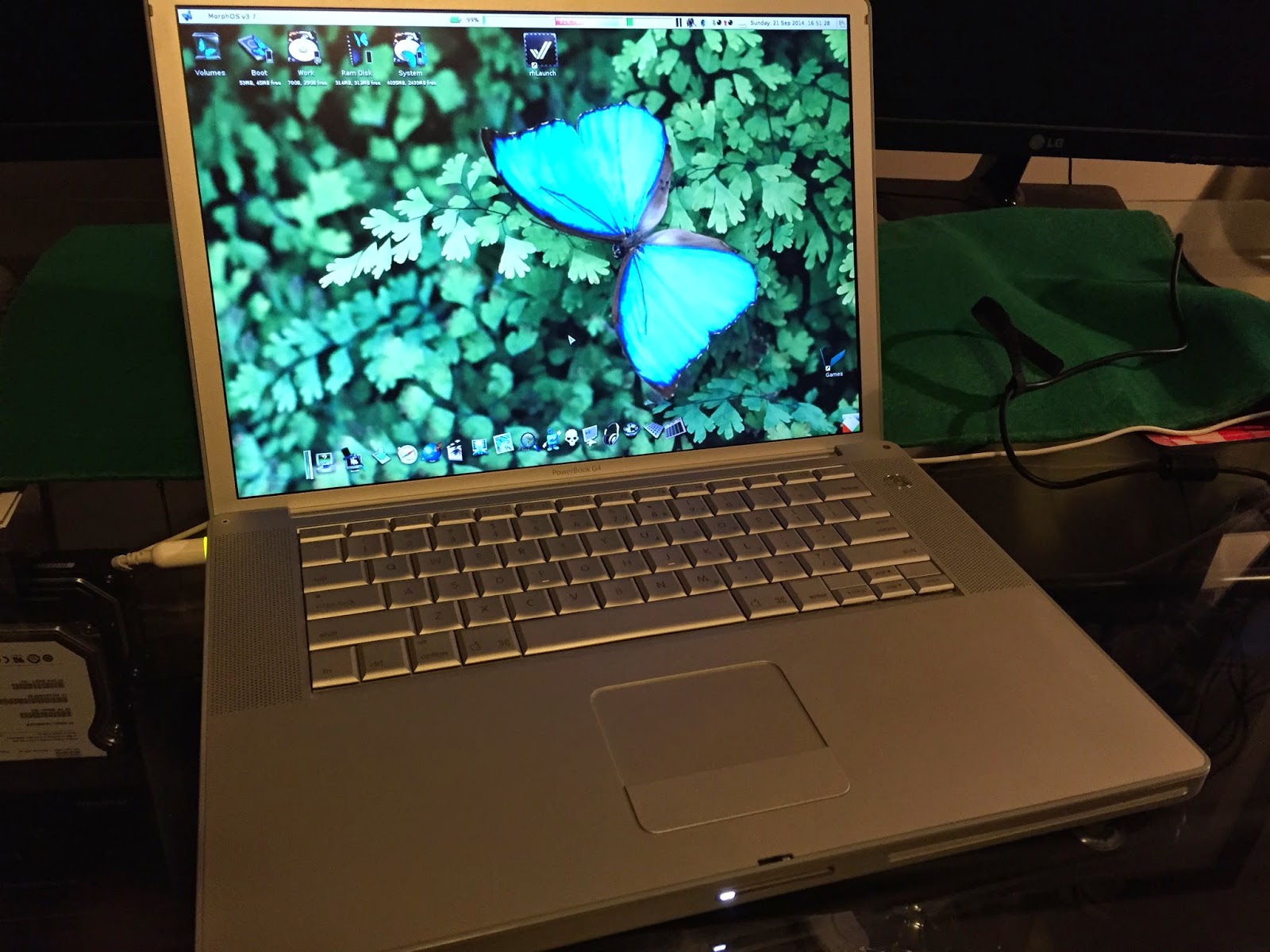
This is my registered MorphOS 3.7 laptop, an Apple Powerbook G4 15" model, running a Mad Wizards demo from Revision 2012 Demo party:


Return to Castle Wolfenstein running on it:


MorphOS 3.7 Ambient Desktop:


System Folder layout - no idea yet why there is French text in the bottom bar when the locale is English - came from the Chrysalis Pack iso add-on I guess:


Another view of the Ambient Desktop, with a different wallpaper:


AmiNetRadio playing some Mp3's, showing the playlist view:


Next is the Odyssey Web browser (OWB) showing MorphZone, MorphOS Files websites, to keep up to date on the latest news for MorphOS:


Next, I am playing my recent YouTube videos on Odyssey under MorphOS 3.7 works well - and no, before anyone asks, I didn't queue up for an iPhone 6 - I did get one via pre order on launch day though - my launch day blog post and video link here if interested):


Grunch is very useful tool that checks for updates on the latest version of software you have installed on your MorphOS machine:


This is just a small taste of one of the systems I plan to bring - my builds on two other computers are in progress right now.

I hope you can make it to AmiWest 2014 this year - I would love to meet and chat to as many Amiga people as possible!